Set Up Build Kits
The MRS SDK for Qt leverages Qt Creator kits to cross-compile projects for various MRS products.
Install Qt Creator
Section titled “Install Qt Creator”NOTE: Qt Creator is installed by default in the standard MRS SDK VM. If you are using the standard VM (and do not need to update Qt Creator), skip to kit setup.
If you have never installed Qt before, or do not have the Qt Maintenance Tool, use the Qt Online Installer steps. If you have installed Qt before, but didn’t install Qt Creator or want to update it, use the Qt Maintenance Tool steps.
NOTE: these steps are based on version 4.10.0 of the Qt Online Installer.
-
Create a new Qt account: https://login.qt.io/register
-
Download the Qt Online Installer from here: https://my.qt.io/download
- If you are using an Ubuntu/Linux VM, use the
Linux x64installer
- If you are using an Ubuntu/Linux VM, use the
-
Run the installer (make it executable if on Linux). Log in with your Qt credentials and accept the licenses.
-
Choose a directory to install Qt. The default of
$HOME/Qtis fine, or you can choose a different location. -
You will be presented with a list of components available to be installed. Choose Qt Creator:
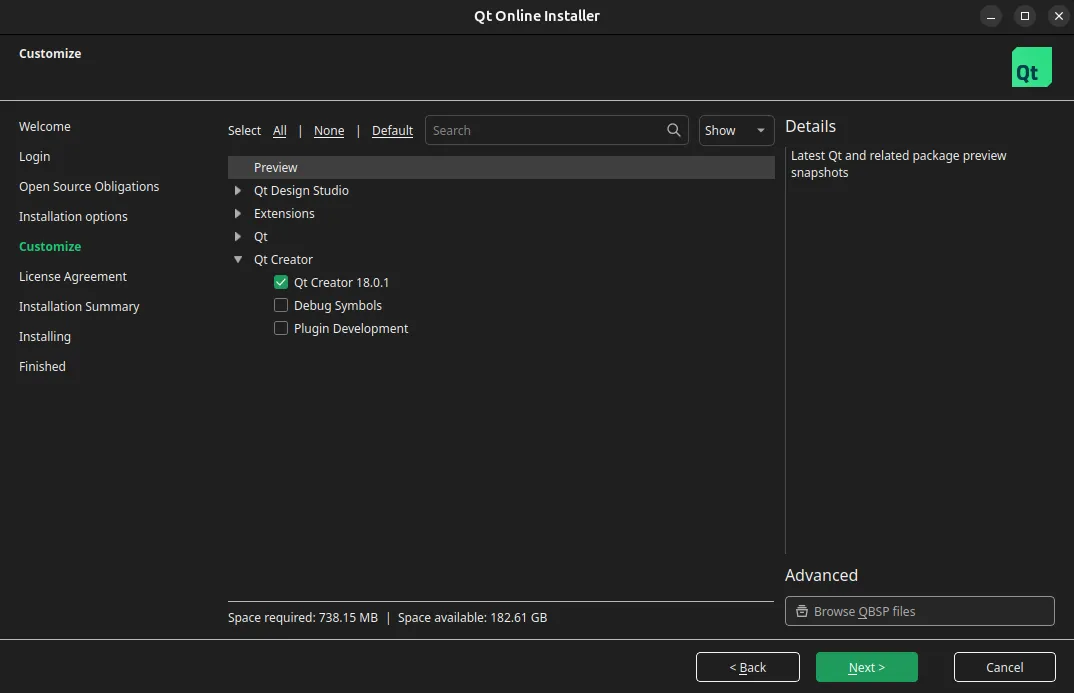
-
When you reach the “You are installing” screen, you should see only Maintenance Tool and Qt Creator.
-
Click Install to finish the installation.
NOTE: these steps are based on version 4.10.0 of the Qt Maintenance Tool.
-
Run the Qt Maintenance Tool. It is located at the top level of your existing Qt installation.
-
Log in with your Qt credentials, then select Update components as the maintenance action.
-
You will be presented with a list of components available to install/update. Choose Qt Creator, CMake, Ninja, and SDKTool. Make sure Qt Design Studio is unavailable or deselected; you do not need it for developing with the MRS Qt SDK.
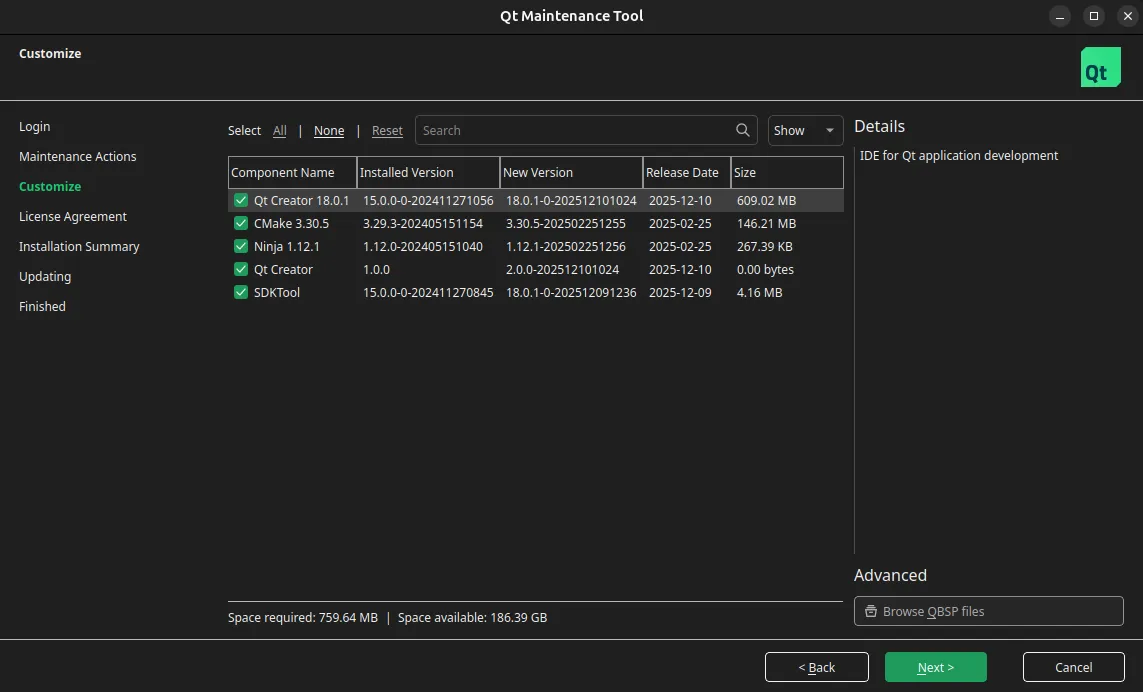
-
Click Update to finish the installation.
Which kits do I need?
Section titled “Which kits do I need?”Most users will not need to set up all of the possible SDK kits. For example, if you have only NeuralPlex devices, you will only need 1 of the 5 kits to work on your projects.
The following table summarizes which kits you’ll need:
| Product | Kits Required |
|---|---|
| NeuralPlex | desktop-qt6 |
| MConn | mconn-yocto, mconn-buildroot, desktop-qt5 |
| FUSION | fusion-buildroot, desktop-qt5 |
NOTE: any contributors to the SDK project will need to set up all kits in order to have full testing capabilities.
Configure Kits
Section titled “Configure Kits”The SDK exports a few helper scripts under lib/cmake/mrs-sdk-qt/toolchains for bootstrapping CMake with the right Qt version:
| File | Qt version | Target OS identifier |
|---|---|---|
qt5-buildroot.cmake | Buildroot Qt 5.9.1 | buildroot |
qt5-yocto.cmake | Yocto Qt 5.12.9 | yocto |
qt5-desktop.cmake | Desktop Qt 5.15 | desktop |
qt6-desktop.cmake | Desktop Qt 6.8 | desktop |
Each helper sets cache variables used in lib/cmake/mrs-sdk-qt/config.cmake to compute a consistent kit identity. When creating SDK kits, you’ll pass the location of this helper with something like -DCMAKE_TOOLCHAIN_FILE=lib/cmake/mrs-sdk-qt/toolchains/qt5-yocto.cmake.
The SDK exports a few helper scripts under lib/qmake/mrs-sdk-qt/toolchains for bootstrapping QMake with the right Qt version:
| File | Qt version | Target OS identifier |
|---|---|---|
qt5-buildroot.pri | Buildroot Qt 5.9.1 | buildroot |
qt5-yocto.pri | Yocto Qt 5.12.9 | yocto |
qt5-desktop.pri | Desktop Qt 5.15 | desktop |
qt6-desktop.pri | Desktop Qt 6.8 | desktop |
Each helper sets variables used in lib/qmake/mrs-sdk-qt/config.pri to compute a consistent kit identity. When creating SDK kits, you’ll pass the location of this helper with something like -DQMAKE_TOOLCHAIN_FILE=lib/qmake/mrs-sdk-qt/toolchains/qt5-yocto.pri.
In addition to configuring the helper script to use, you’ll have to tell the kit which MRS product it targets.
MConn Yocto (Qt5)
Section titled “MConn Yocto (Qt5)”
MConn Yocto (Qt5)
Section titled “MConn Yocto (Qt5)”Setup steps coming soon!
MConn Buildroot (Qt5)
Section titled “MConn Buildroot (Qt5)”
MConn Buildroot (Qt5)
Section titled “MConn Buildroot (Qt5)”Setup steps coming soon!
FUSION Buildroot (Qt5)
Section titled “FUSION Buildroot (Qt5)”
FUSION Buildroot (Qt5)
Section titled “FUSION Buildroot (Qt5)”Setup steps coming soon!
Desktop Qt6
Section titled “Desktop Qt6”
Desktop Qt6
Section titled “Desktop Qt6”NOTE: these steps are based on version 13.0.0 of Qt Creator, which is the version installed by default in the MRS SDK VM.
-
Open Qt Creator and go to Edit > Preferences > Kits.
-
There will be a few tabs across the top of the window. Go to Qt Versions.
-
Add the Qt 6.8 version by selecting its
qmakeprogram, located at/opt/Qt/6.8.0/gcc_64/bin/qmake: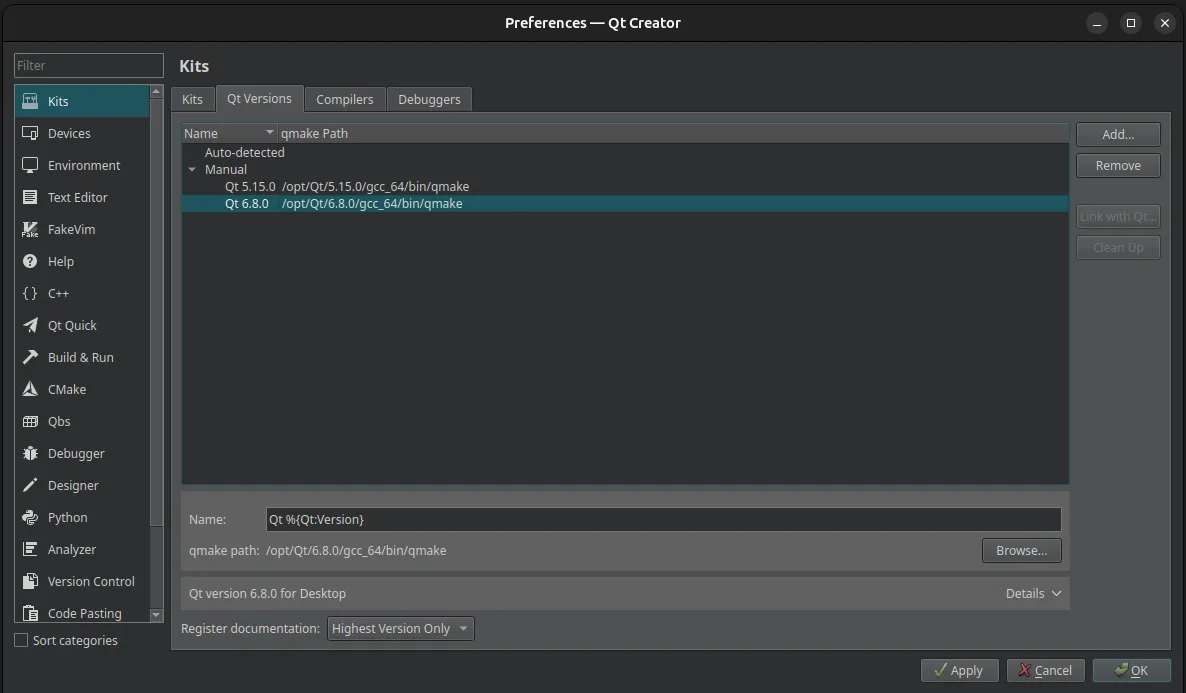
-
Go to Compilers. Verify the C/C++ compilers were auto-detected:
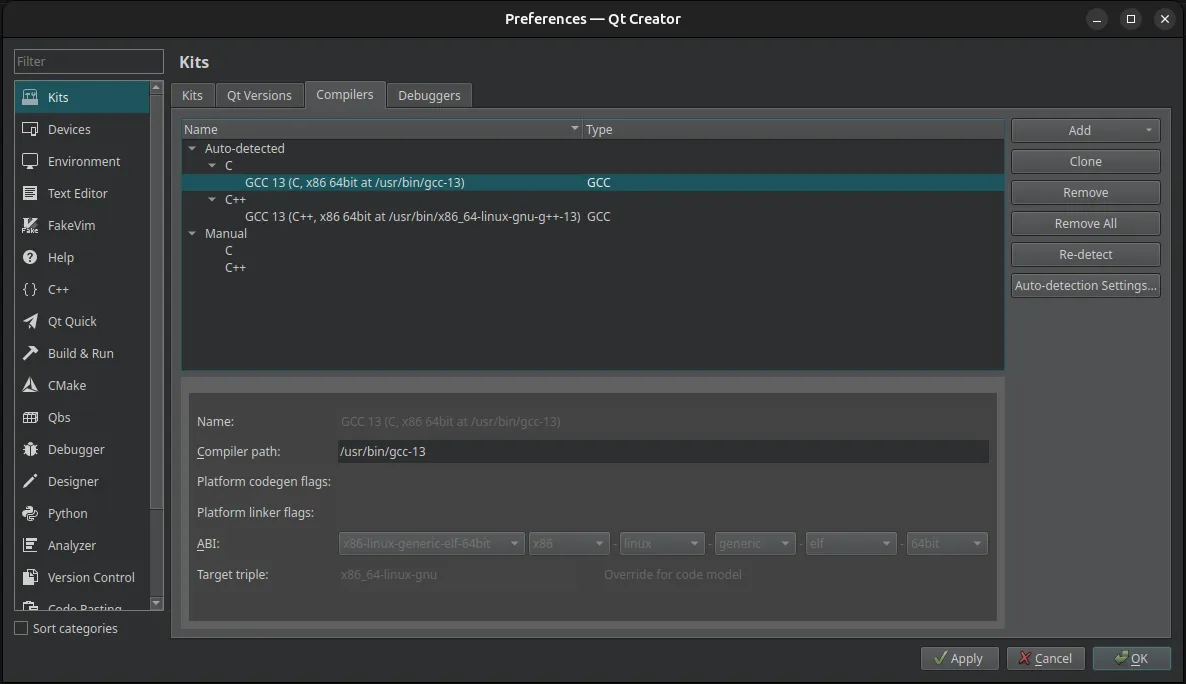
There may be multiple compiler options on your system even if only one was auto-detected. Look for paths like
/usr/bin/gcc,/bin/gcc, or/usr/lib/ccache/gcc. Runapt install build-essentialto install the GNU compilers if necessary. -
Go to Debuggers. Verify a system GDB debugger was auto-detected:
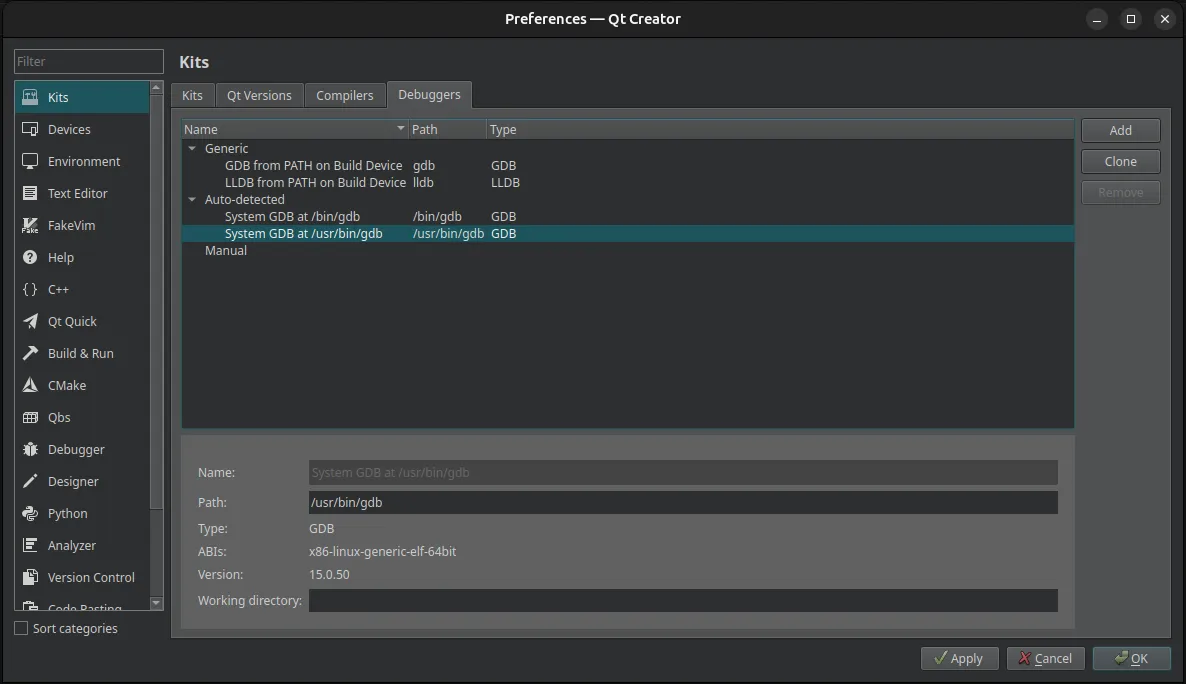
Look for paths like
/usr/bin/gdbor/bin/gdb. Runapt install gdbto install the GDB debugger if necessary. -
Navigate to the CMake section in the sidebar, then go to the Tools tab.
-
Verify a system CMake tool was auto-detected:
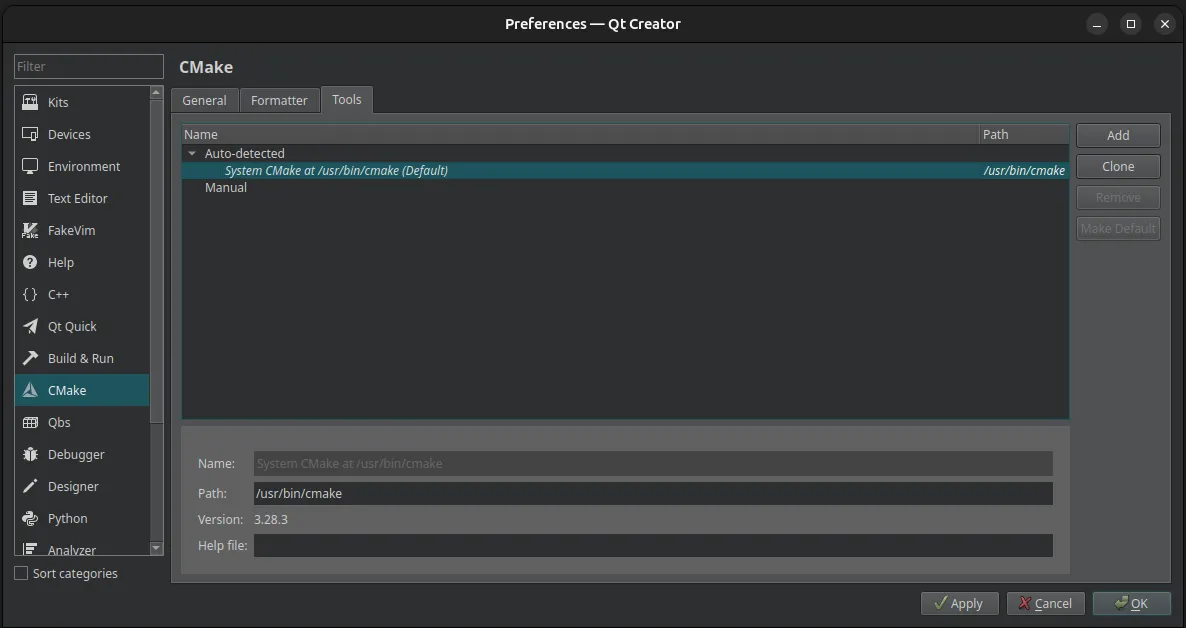
Look for the path
/usr/bin/cmake. Runapt install cmaketo install CMake if necessary. -
Now that all the kit’s components have been verified, it’s time to create the kit! Navigate back to Kits.
-
Click Add to add a new kit. Edit the configuration to match this:
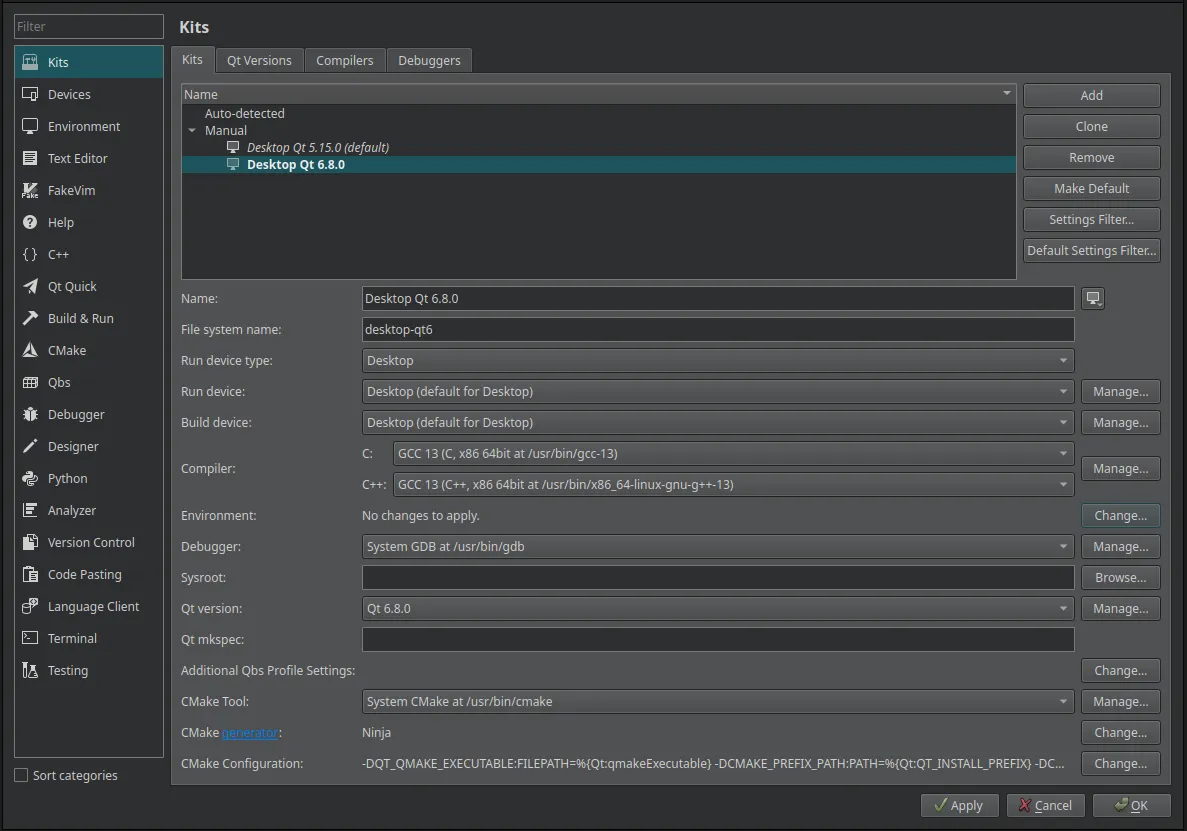
Make sure the proper compiler, debugger, and CMake tool are selected.
-
Next, you’ll need to add some environment variables to configure the SDK. Click the Change… button for the Environment configuration and add the following, inserting the path to your MRS SDK installation:
MRS_SDK_QT_TARGET_DEVICE=DesktopQMAKE_TOOLCHAIN_FILE=<path-to-sdk-installation>/current/lib/qmake/mrs-sdk-qt/toolchains/qt6-desktop.pri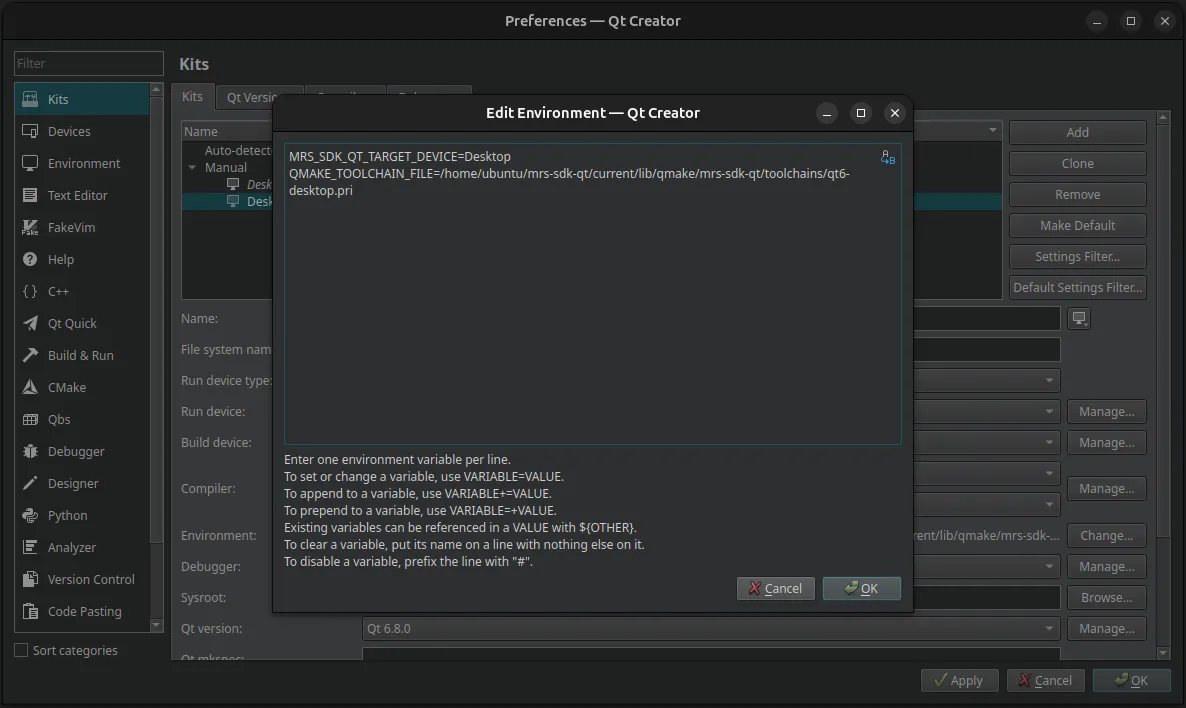
-
Finally, you need to verify CMake is configured for the SDK properly. Click the Change… button next to CMake Configuration and add the following, inserting the path to your MRS SDK installation:
-DQT_QMAKE_EXECUTABLE:FILEPATH=%{Qt:qmakeExecutable}-DCMAKE_PREFIX_PATH:PATH=%{Qt:QT_INSTALL_PREFIX}-DCMAKE_C_COMPILER:FILEPATH=%{Compiler:Executable:C}-DCMAKE_CXX_COMPILER:FILEPATH=%{Compiler:Executable:Cxx}-DCMAKE_TOOLCHAIN_FILE:STRING=<path-to-mrs-sdk-installation>/current/lib/cmake/mrs-sdk-qt/toolchains/qt6-desktop.cmake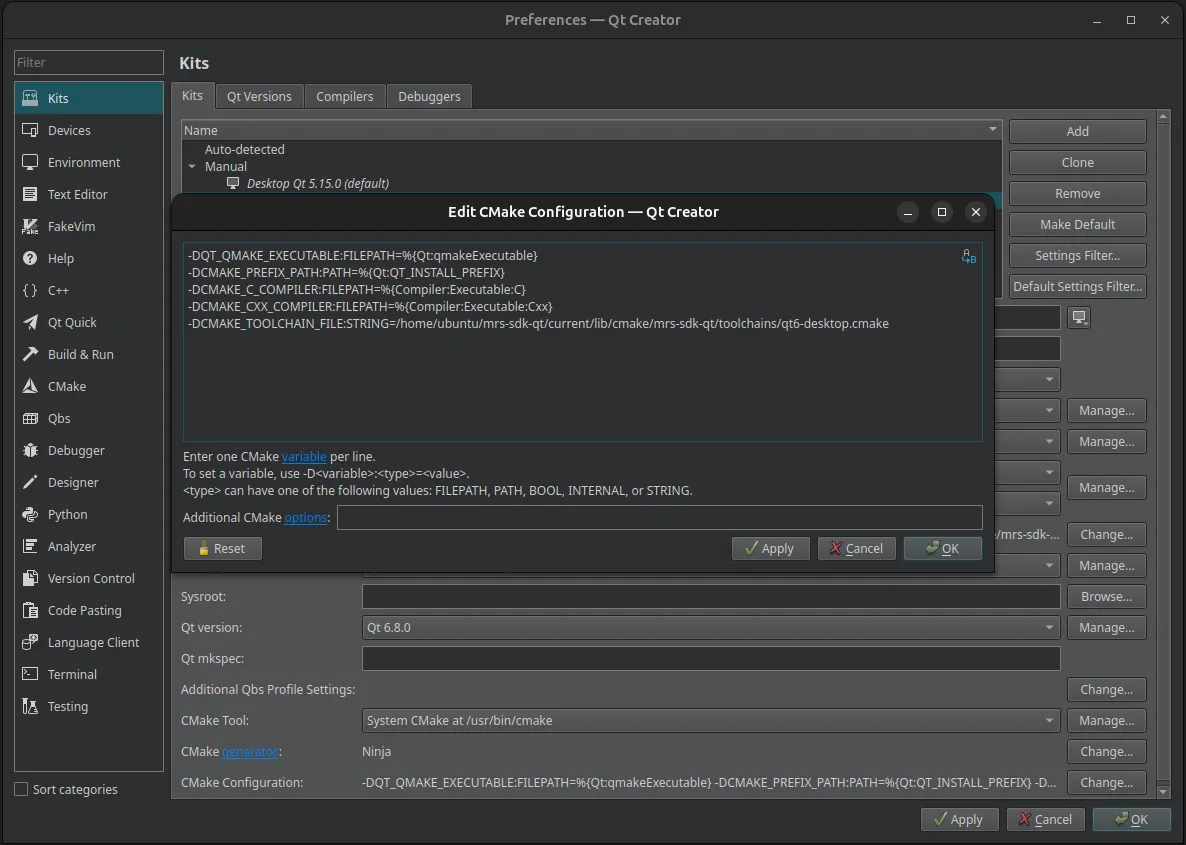
-
Your Desktop Qt6 kit is now complete and ready to use with the MRS SDK!
Desktop Qt5
Section titled “Desktop Qt5”
Desktop Qt5
Section titled “Desktop Qt5”NOTE: these steps are based on version 13.0.0 of Qt Creator, which is the version installed by default in the MRS SDK VM.
-
Open Qt Creator and go to Edit > Preferences > Kits.
-
There will be a few tabs across the top of the window. Go to Qt Versions.
-
Add the Qt 5.15 version by selecting its
qmakeprogram, located at/opt/Qt/5.15.0/gcc_64/bin/qmake: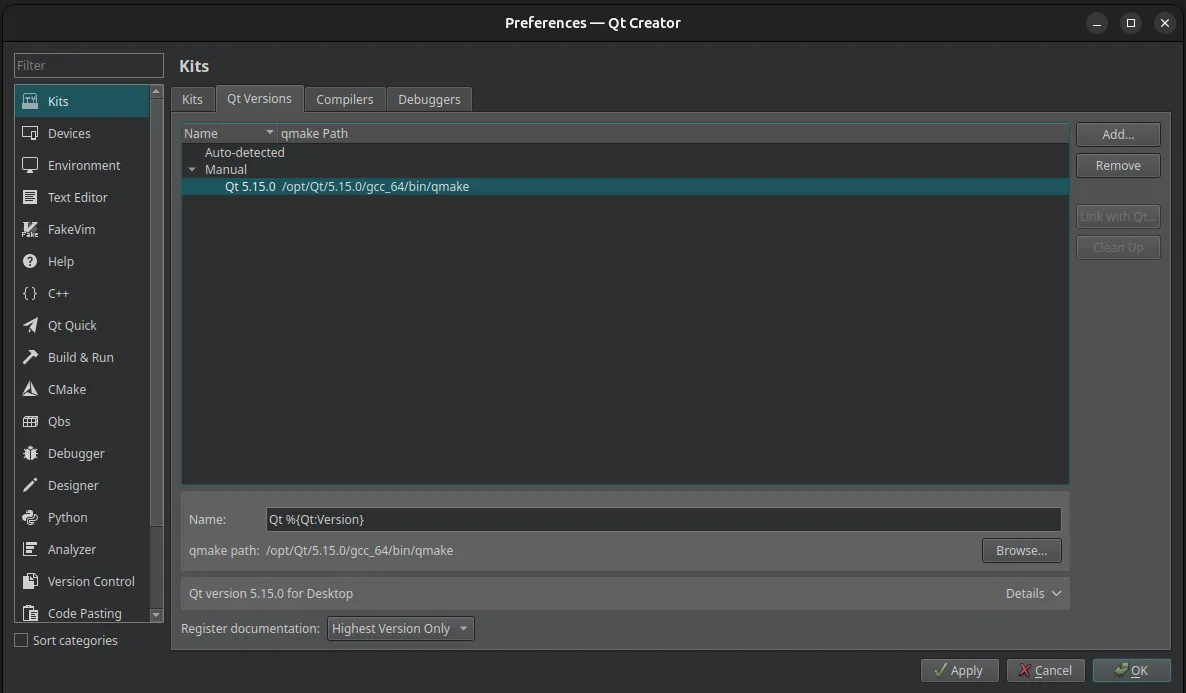
-
Go to Compilers. Verify the C/C++ compilers were auto-detected:
There may be multiple compiler options on your system even if only one was auto-detected. Look for paths like
/usr/bin/gcc,/bin/gcc, or/usr/lib/ccache/gcc. Runapt install build-essentialto install the GNU compilers if necessary. -
Go to Debuggers. Verify a system GDB debugger was auto-detected:
Look for paths like
/usr/bin/gdbor/bin/gdb. Runapt install gdbto install the GDB debugger if necessary. -
Navigate to the CMake section in the sidebar, then go to the Tools tab.
-
Verify a system CMake tool was auto-detected:
Look for the path
/usr/bin/cmake. Runapt install cmaketo install CMake if necessary. -
Now that all the kit’s components have been verified, it’s time to create the kit! Navigate back to Kits.
-
Click Add to add a new kit. Edit the configuration to match this:
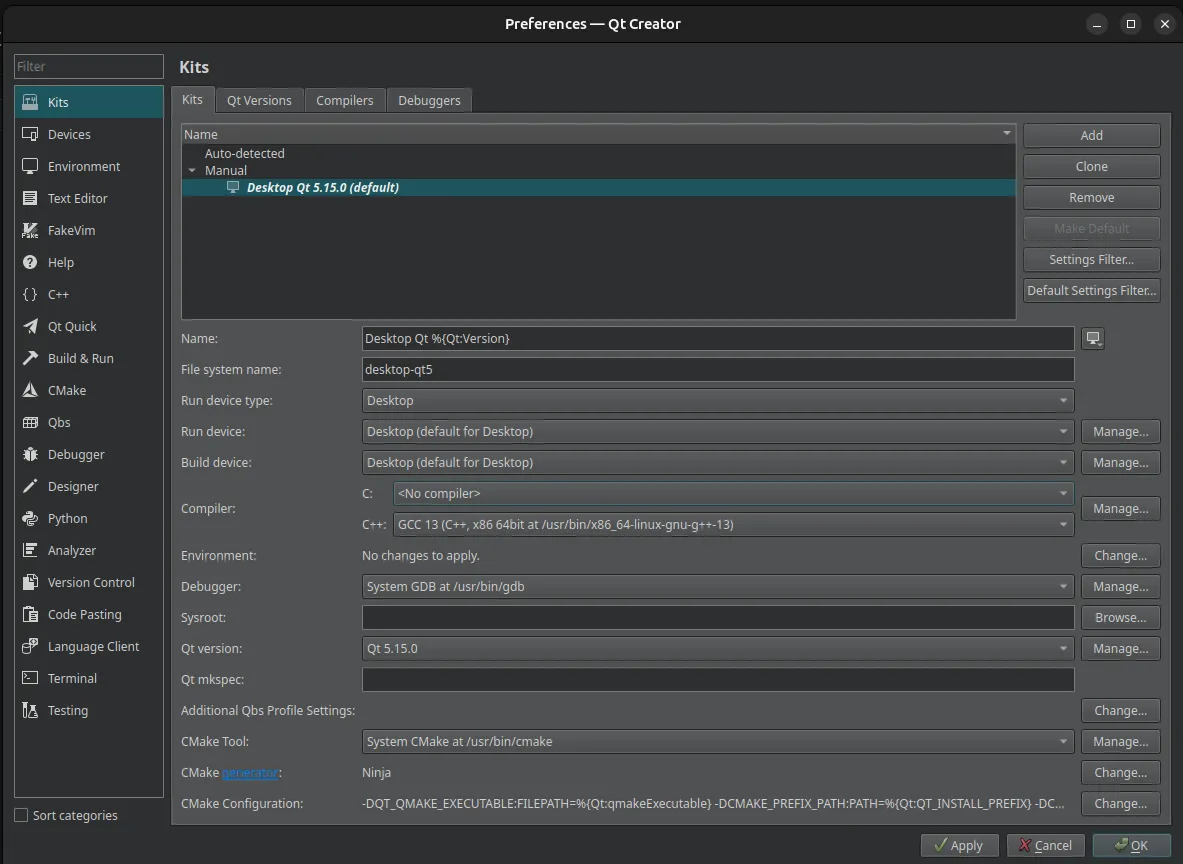
Make sure the proper compiler, debugger, and CMake tool are selected.
-
Next, you’ll need to add some environment variables to configure the SDK. Click the Change… button for the Environment configuration and add the following, inserting the path to your MRS SDK installation:
MRS_SDK_QT_TARGET_DEVICE=DesktopQMAKE_TOOLCHAIN_FILE=<path-to-sdk-installation>/current/lib/qmake/mrs-sdk-qt/toolchains/qt5-desktop.pri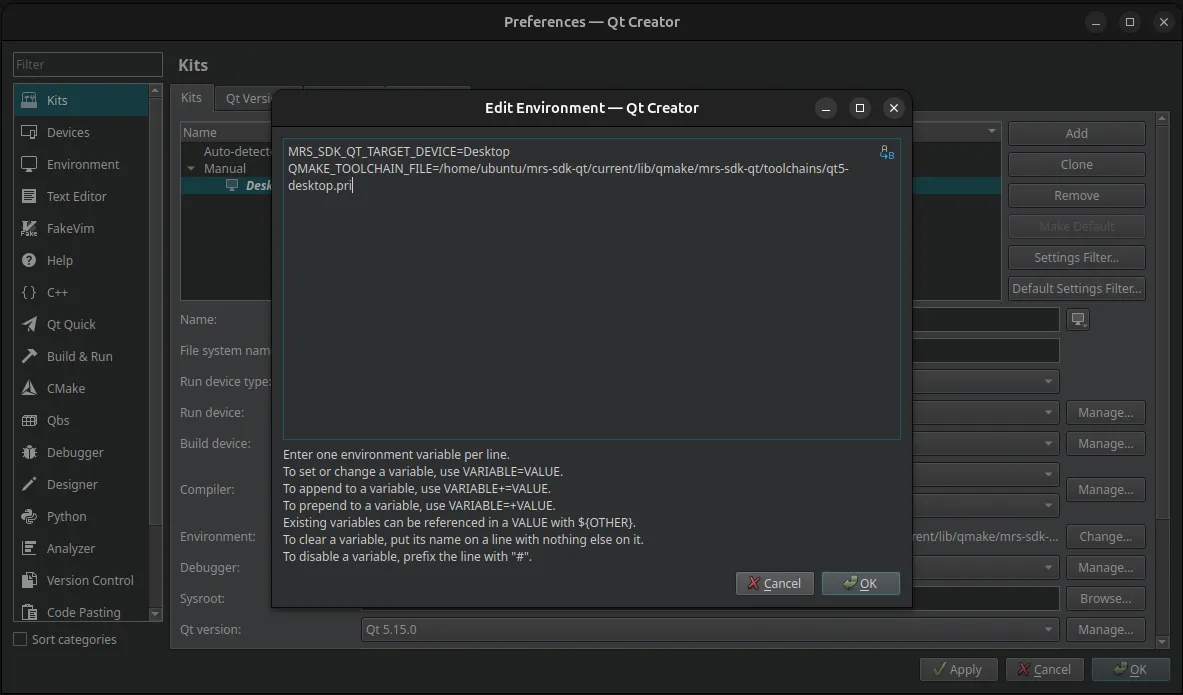
-
Finally, you need to verify CMake is configured for the SDK properly. Click the Change… button next to CMake Configuration and add the following, inserting the path to your MRS SDK installation:
-DQT_QMAKE_EXECUTABLE:FILEPATH=%{Qt:qmakeExecutable}-DCMAKE_PREFIX_PATH:PATH=%{Qt:QT_INSTALL_PREFIX}-DCMAKE_C_COMPILER:FILEPATH=%{Compiler:Executable:C}-DCMAKE_CXX_COMPILER:FILEPATH=%{Compiler:Executable:Cxx}-DCMAKE_TOOLCHAIN_FILE:STRING=<path-to-mrs-sdk-installation>/current/lib/cmake/mrs-sdk-qt/toolchains/qt5-desktop.cmake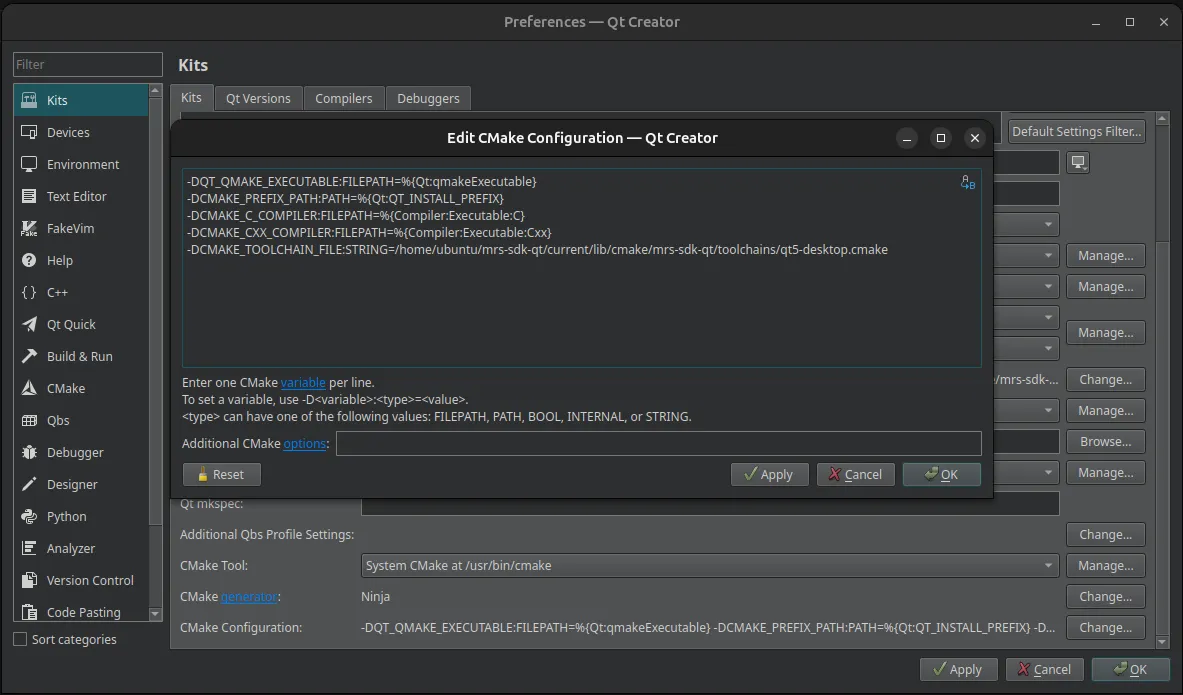
-
Your Desktop Qt5 kit is now complete and ready to use with the MRS SDK!