Set Up Build Kits
The MRX SDK for Qt uses Qt Creator kits to cross-compile projects for various MRX products.
Install Qt Creator
Section titled “Install Qt Creator”NOTE: Qt Creator is installed by default in the standard MRX SDK VM. If you are using the standard VM (and do not need to update Qt Creator), skip to kit setup.
If you have never installed Qt before, or do not have the Qt Maintenance Tool, use the Qt Online Installer steps. If you have installed Qt before, but didn’t install Qt Creator or want to update it, use the Qt Maintenance Tool steps.
NOTE: these steps are based on version 4.10.0 of the Qt Online Installer.
-
Create a new Qt account: https://login.qt.io/register
-
Download the Qt Online Installer from here: https://my.qt.io/download
- If you are using an Ubuntu/Linux VM, use the
Linux x64installer
- If you are using an Ubuntu/Linux VM, use the
-
Run the installer (make it executable if on Linux). Log in with your Qt credentials and accept the licenses.
-
Choose a directory to install Qt. The default of
$HOME/Qtis fine, or you can choose a different location. -
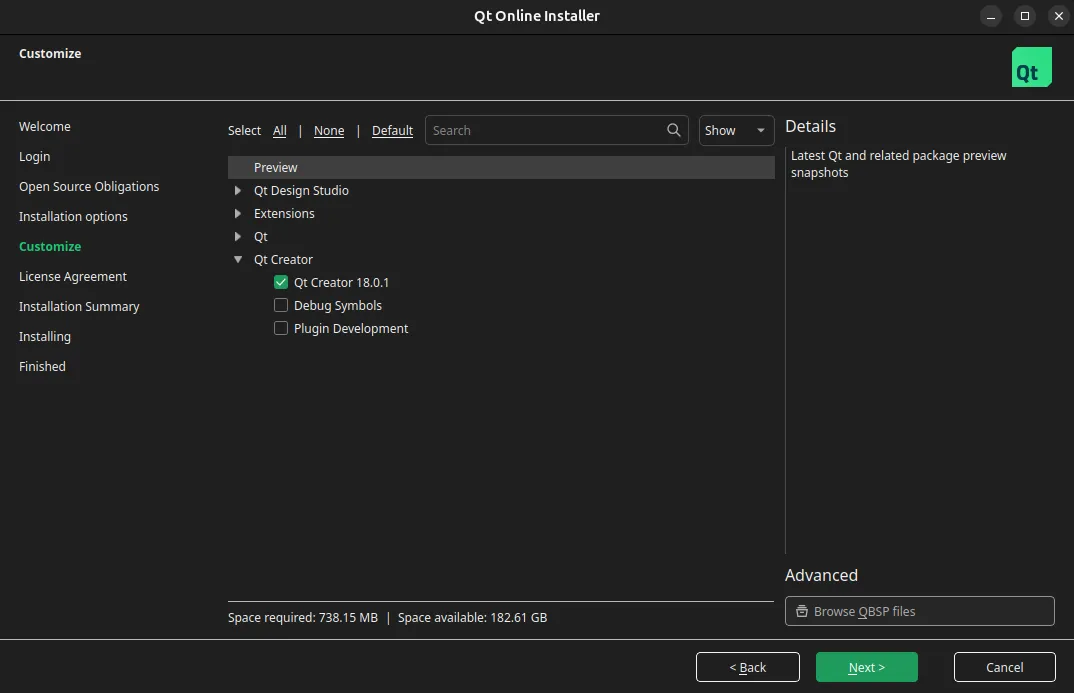
You will be presented with a list of components available to be installed. Choose Qt Creator:
-
When you reach the “You are installing” screen, you should see only Maintenance Tool and Qt Creator.
-
Click Install to finish the installation.
NOTE: these steps are based on version 4.10.0 of the Qt Maintenance Tool.
-
Run the Qt Maintenance Tool. It is located at the top level of your existing Qt installation.
-
Log in with your Qt credentials, then select Update components as the maintenance action.
-
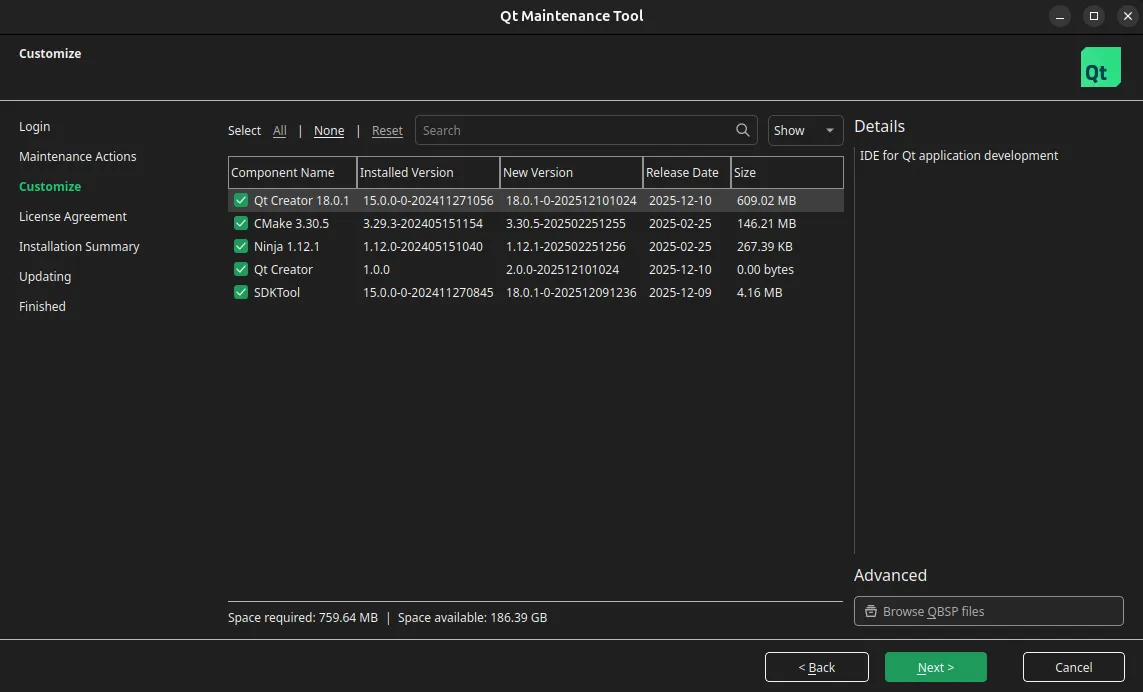
You will be presented with a list of components available to install/update. Choose Qt Creator, CMake, Ninja, and SDKTool. Make sure Qt Design Studio is unavailable or deselected; you do not need it for developing with the MRX Qt SDK.
-
Click Update to finish the installation.
Which kits do I need?
Section titled “Which kits do I need?”Most users will not need to set up all of the possible SDK kits. For example, if you have only NeuralPlex devices, you will only need 1 of the 5 kits to work on your projects.
The following table summarizes which kits you’ll need:
| Product | Kits Required |
|---|---|
| NeuralPlex | desktop-qt6 |
| MConn | mconn-yocto, mconn-buildroot, desktop-qt5 |
| FUSION | fusion-buildroot, desktop-qt5 |
NOTE: any contributors to the SDK project will need to set up all kits in order to have full testing capabilities.
Configure Kits
Section titled “Configure Kits”The SDK ships installable toolchain files under share/mrxqt/toolchains/ inside the target-support package:
| File | Qt version | Target OS identifier |
|---|---|---|
buildroot-qt5.9.cmake | Buildroot Qt 5.9 | buildroot |
native-qt5.15.cmake | Desktop Qt 5.15 | native |
native-qt6.8.cmake | Desktop Qt 6.8 | native |
yocto-qt5.cmake | Yocto Qt 5.12 | yocto |
Each helper is referenced from the CMakeUserPresets.json entries generated by mrxqt-setup init-project, so consumer projects do not need to maintain their own copied wrapper files.
In addition to selecting the helper script, your preset or kit still needs to target the correct MRX product SDK root.
MConn Yocto (Qt5)
Section titled “MConn Yocto (Qt5)”
MConn Yocto (Qt5)
Section titled “MConn Yocto (Qt5)”Setup steps coming soon!
MConn Buildroot (Qt5)
Section titled “MConn Buildroot (Qt5)”
MConn Buildroot (Qt5)
Section titled “MConn Buildroot (Qt5)”Setup steps coming soon!
FUSION Buildroot (Qt5)
Section titled “FUSION Buildroot (Qt5)”
FUSION Buildroot (Qt5)
Section titled “FUSION Buildroot (Qt5)”Setup steps coming soon!
Desktop Qt6
Section titled “Desktop Qt6”
Desktop Qt6
Section titled “Desktop Qt6”NOTE: these steps are based on version 13.0.0 of Qt Creator, which is the version installed by default in the MRX SDK VM.
-
Open Qt Creator and go to Edit > Preferences > Kits.
-
There will be a few tabs across the top of the window. Go to Qt Versions.
-
Add the Qt 6.8 version by selecting its
qmakeprogram, located at/opt/Qt/6.8.0/gcc_64/bin/qmake: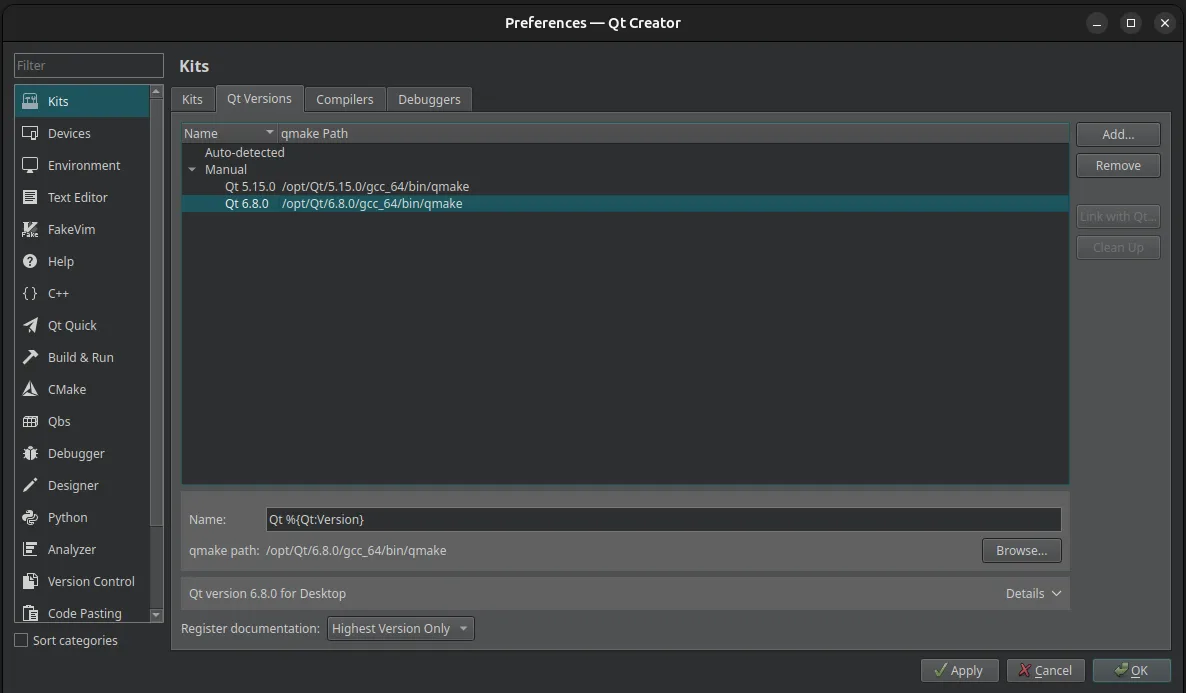
-
Go to Compilers. Verify the C/C++ compilers were auto-detected:
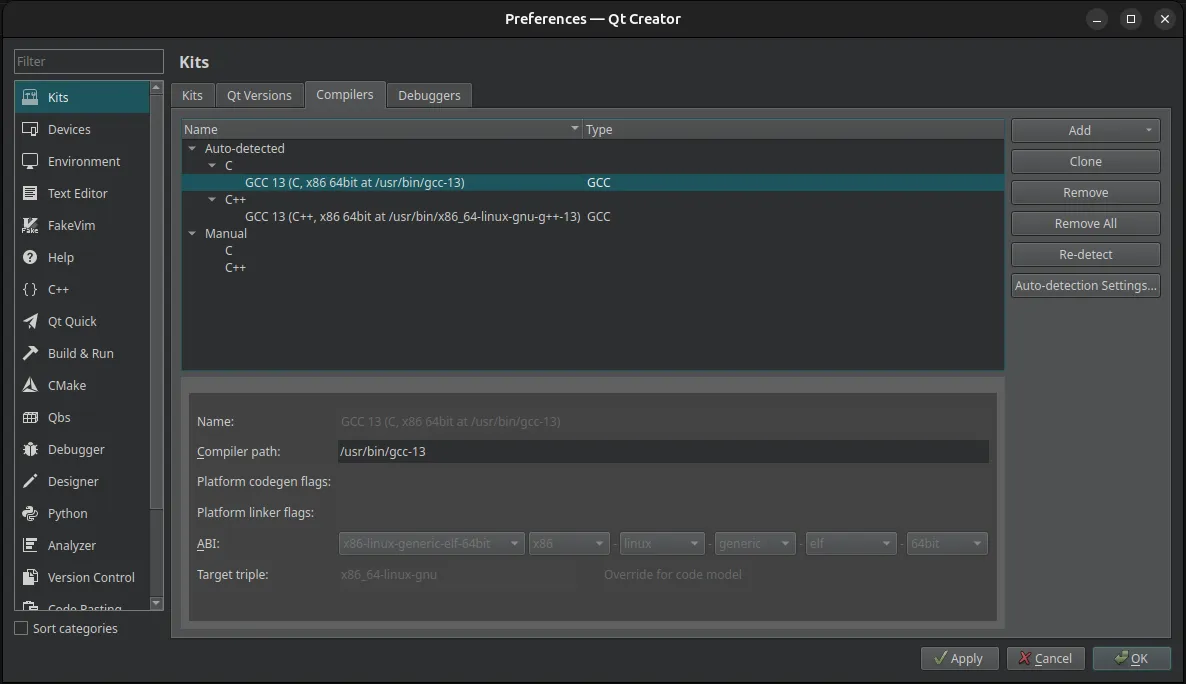
There may be multiple compiler options on your system even if only one was auto-detected. Look for paths like
/usr/bin/gcc,/bin/gcc, or/usr/lib/ccache/gcc. Runapt install build-essentialto install the GNU compilers if necessary. -
Go to Debuggers. Verify a system GDB debugger was auto-detected:
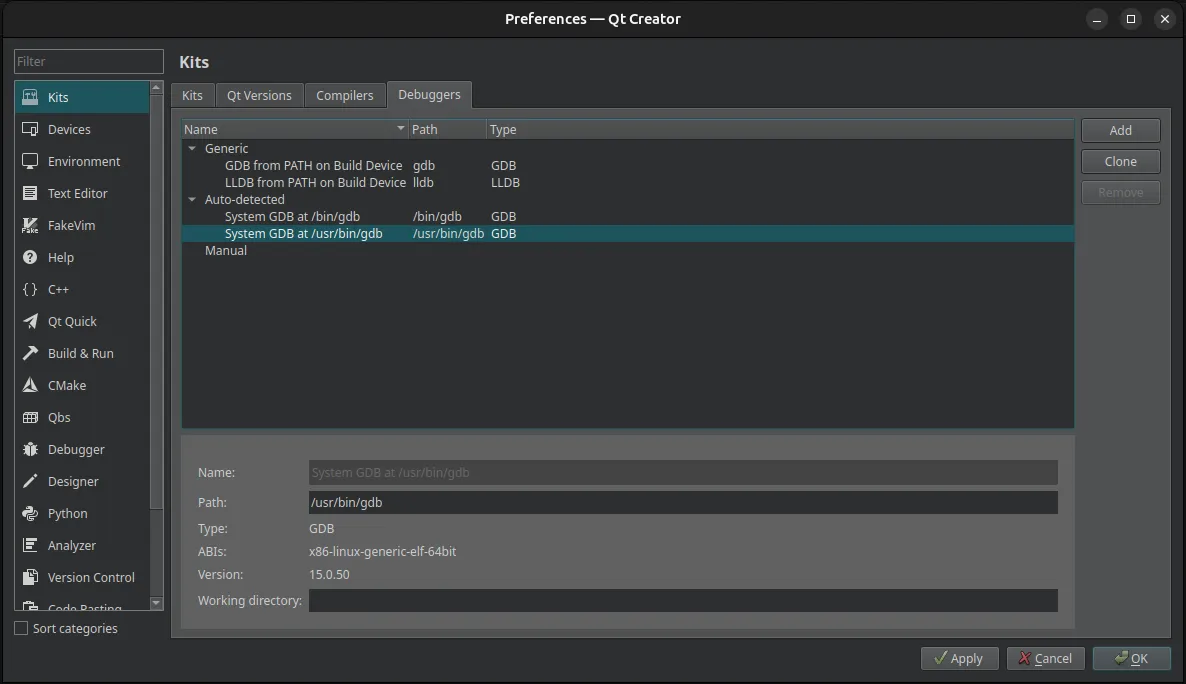
Look for paths like
/usr/bin/gdbor/bin/gdb. Runapt install gdbto install the GDB debugger if necessary. -
Navigate to the CMake section in the sidebar, then go to the Tools tab.
-
Verify a system CMake tool was auto-detected:
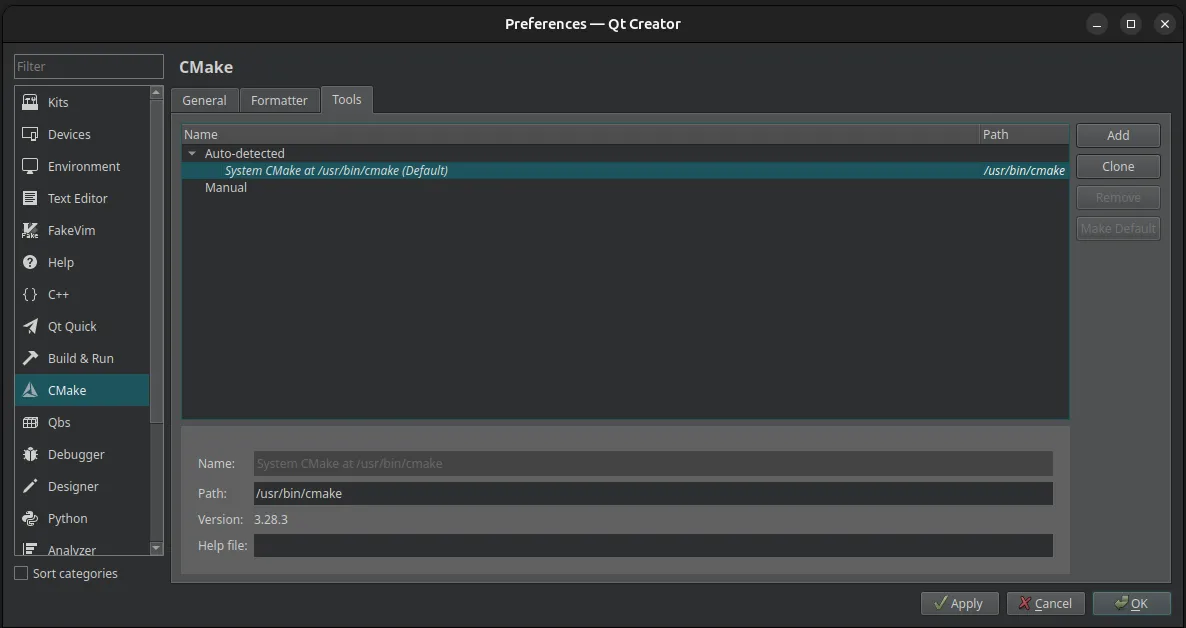
Look for the path
/usr/bin/cmake. Runapt install cmaketo install CMake if necessary. -
Now that all the kit’s components have been verified, it’s time to create the kit! Navigate back to Kits.
-
Click Add to add a new kit. Edit the configuration to match this:
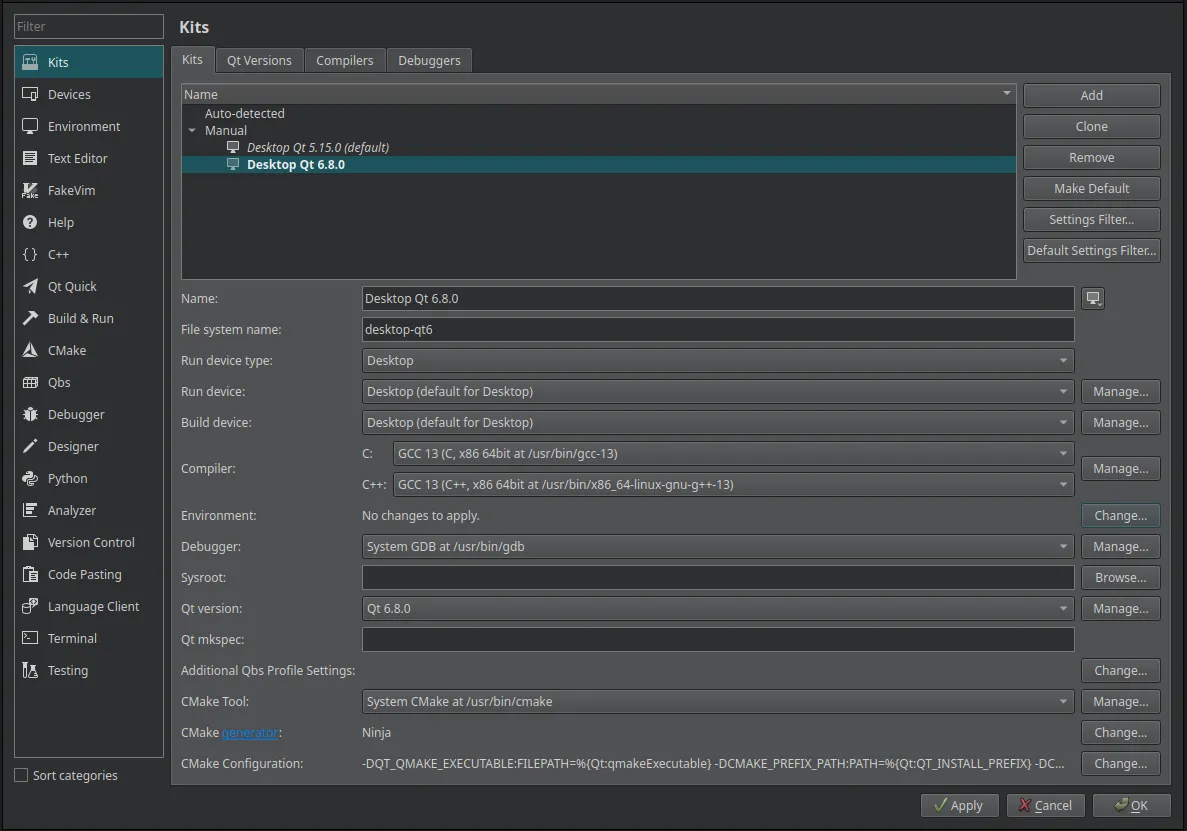
Make sure the proper compiler, debugger, and CMake tool are selected.
-
Next, you’ll need to add some environment variables to configure the SDK. Click the Change… button for the Environment configuration and add the following, inserting the path to your MRX SDK installation:
MRXQT_SDK_PREFIX=<path-to-mrxqt-sdk-installation>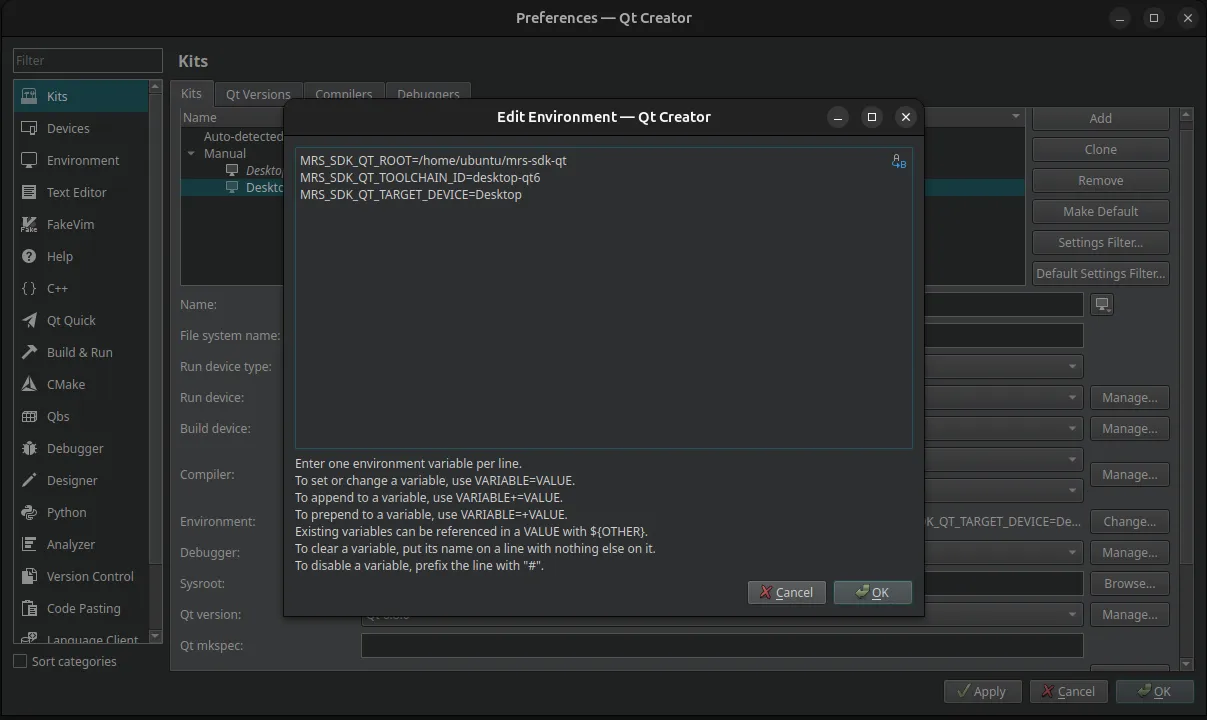
-
Finally, you need to verify CMake is configured for the SDK properly. Click the Change… button next to CMake Configuration and add the following, inserting the path to your MRX SDK installation:
-DCMAKE_CXX_COMPILER:FILEPATH=%{Compiler:Executable:Cxx}-DCMAKE_C_COMPILER:FILEPATH=%{Compiler:Executable:C}-DCMAKE_PREFIX_PATH:PATH=%{Qt:QT_INSTALL_PREFIX}-DCMAKE_TOOLCHAIN_FILE:FILEPATH=/opt/mrxqt-sdk/0.1.0/native-qt6.8/share/mrxqt/toolchains/native-qt6.8.cmake-DQT_QMAKE_EXECUTABLE:FILEPATH=%{Qt:qmakeExecutable}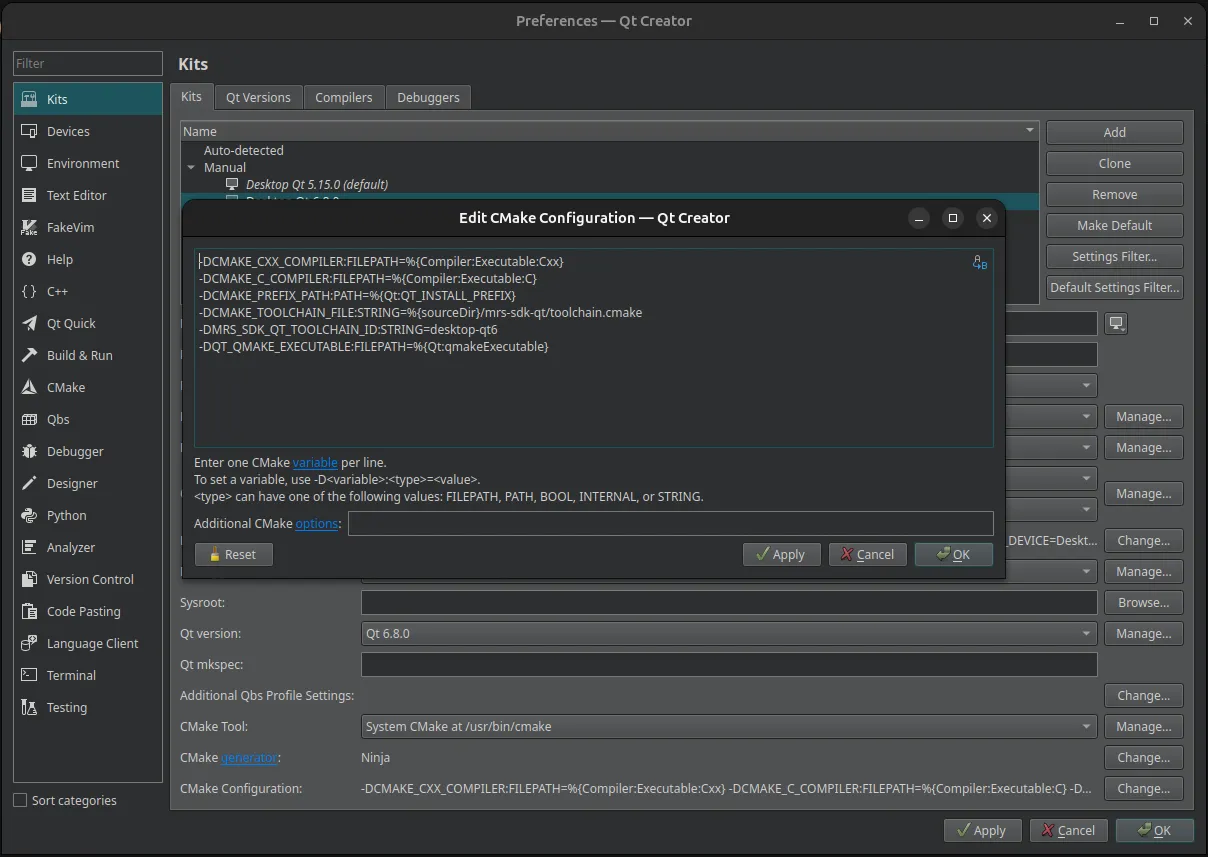
-
Your Desktop Qt6 kit is now complete and ready to use with the MRX SDK! To make sure everything is working properly, verify your kit setup.
Desktop Qt5
Section titled “Desktop Qt5”
Desktop Qt5
Section titled “Desktop Qt5”NOTE: these steps are based on version 13.0.0 of Qt Creator, which is the version installed by default in the MRX SDK VM.
-
Open Qt Creator and go to Edit > Preferences > Kits.
-
There will be a few tabs across the top of the window. Go to Qt Versions.
-
Add the Qt 5.15 version by selecting its
qmakeprogram, located at/opt/Qt/5.15.0/gcc_64/bin/qmake: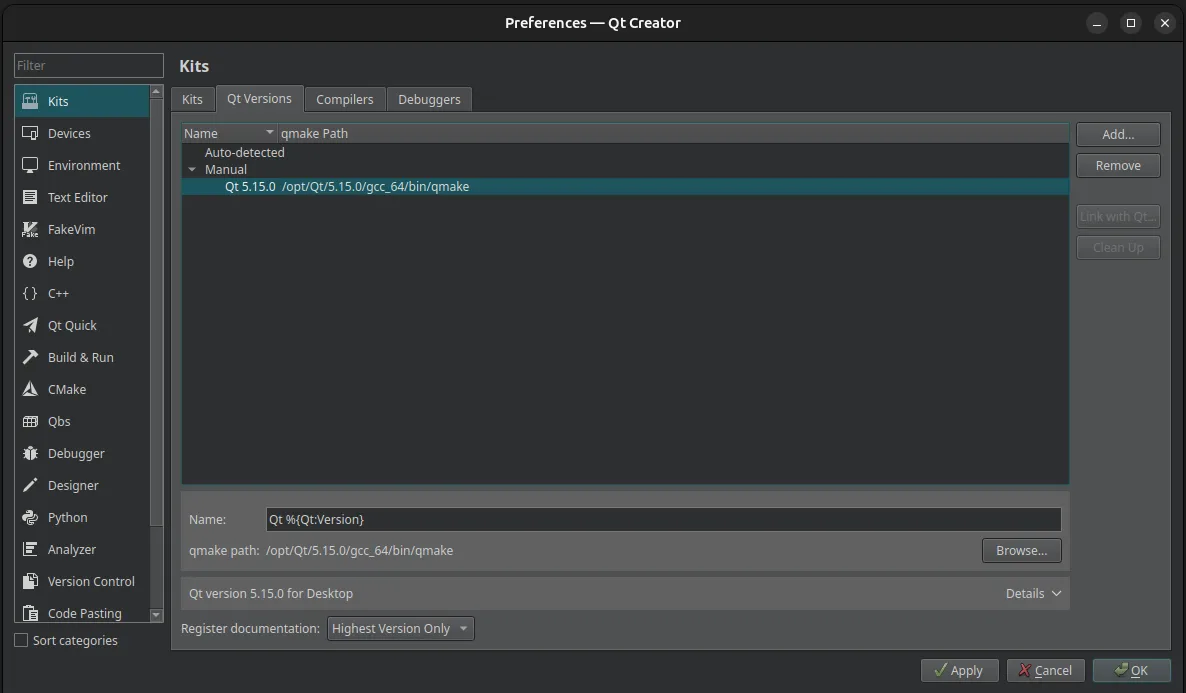
-
Go to Compilers. Verify the C/C++ compilers were auto-detected:
There may be multiple compiler options on your system even if only one was auto-detected. Look for paths like
/usr/bin/gcc,/bin/gcc, or/usr/lib/ccache/gcc. Runapt install build-essentialto install the GNU compilers if necessary. -
Go to Debuggers. Verify a system GDB debugger was auto-detected:
Look for paths like
/usr/bin/gdbor/bin/gdb. Runapt install gdbto install the GDB debugger if necessary. -
Navigate to the CMake section in the sidebar, then go to the Tools tab.
-
Verify a system CMake tool was auto-detected:
Look for the path
/usr/bin/cmake. Runapt install cmaketo install CMake if necessary. -
Now that all the kit’s components have been verified, it’s time to create the kit! Navigate back to Kits.
-
Click Add to add a new kit. Edit the configuration to match this:
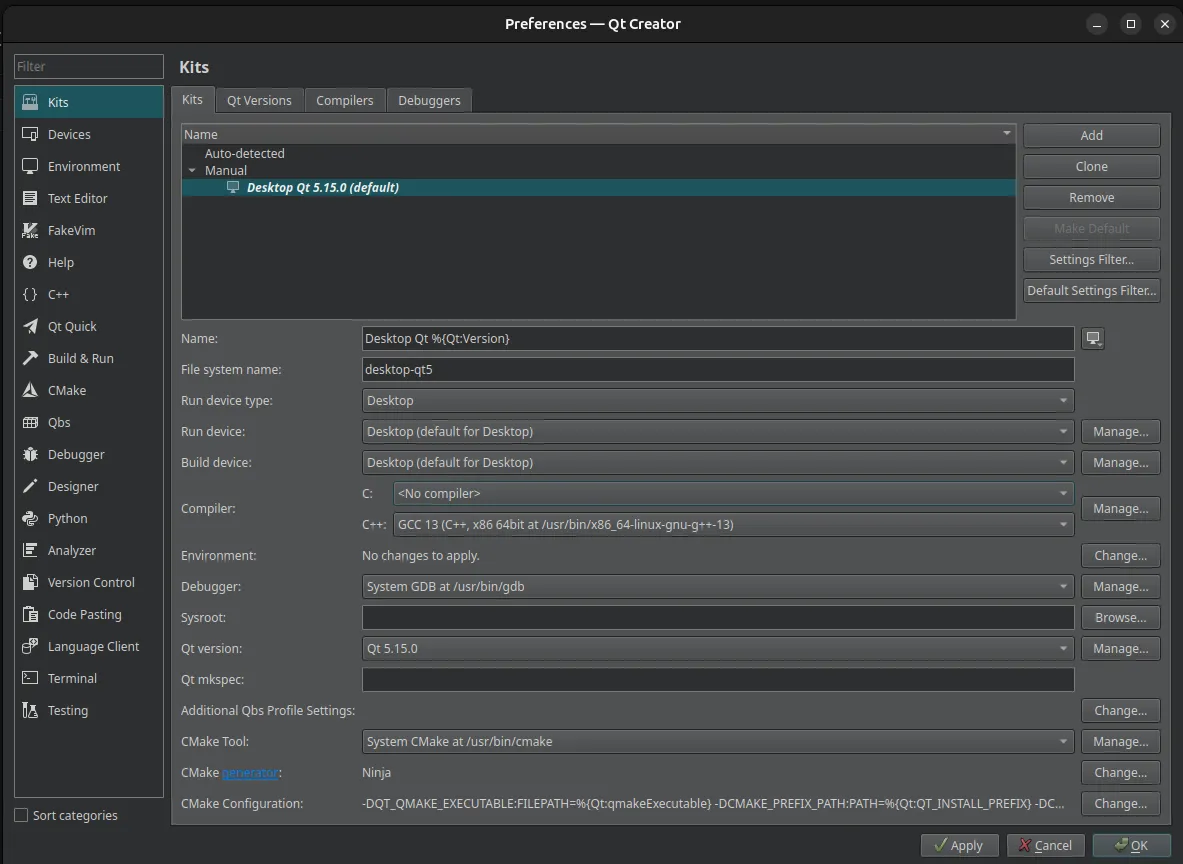
Make sure the proper compiler, debugger, and CMake tool are selected.
-
Next, you’ll need to add some environment variables to configure the SDK. Click the Change… button for the Environment configuration and add the following, inserting the path to your MRX SDK installation:
MRXQT_SDK_PREFIX=<path-to-mrxqt-sdk-installation>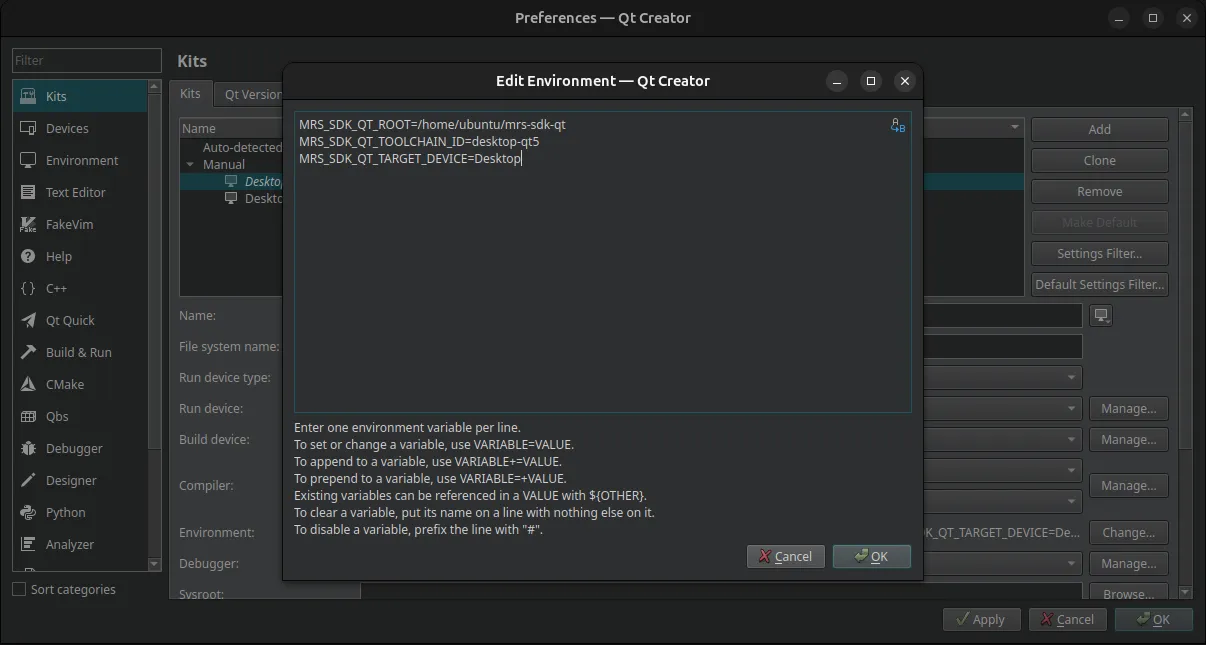
-
Finally, you need to verify CMake is configured for the SDK properly. Click the Change… button next to CMake Configuration and add the following, inserting the path to your MRX SDK installation:
-DCMAKE_CXX_COMPILER:FILEPATH=%{Compiler:Executable:Cxx}-DCMAKE_C_COMPILER:FILEPATH=%{Compiler:Executable:C}-DCMAKE_PREFIX_PATH:PATH=%{Qt:QT_INSTALL_PREFIX}-DCMAKE_TOOLCHAIN_FILE:FILEPATH=/opt/mrxqt-sdk/0.1.0/native-qt5.15/share/mrxqt/toolchains/native-qt5.15.cmake-DQT_QMAKE_EXECUTABLE:FILEPATH=%{Qt:qmakeExecutable}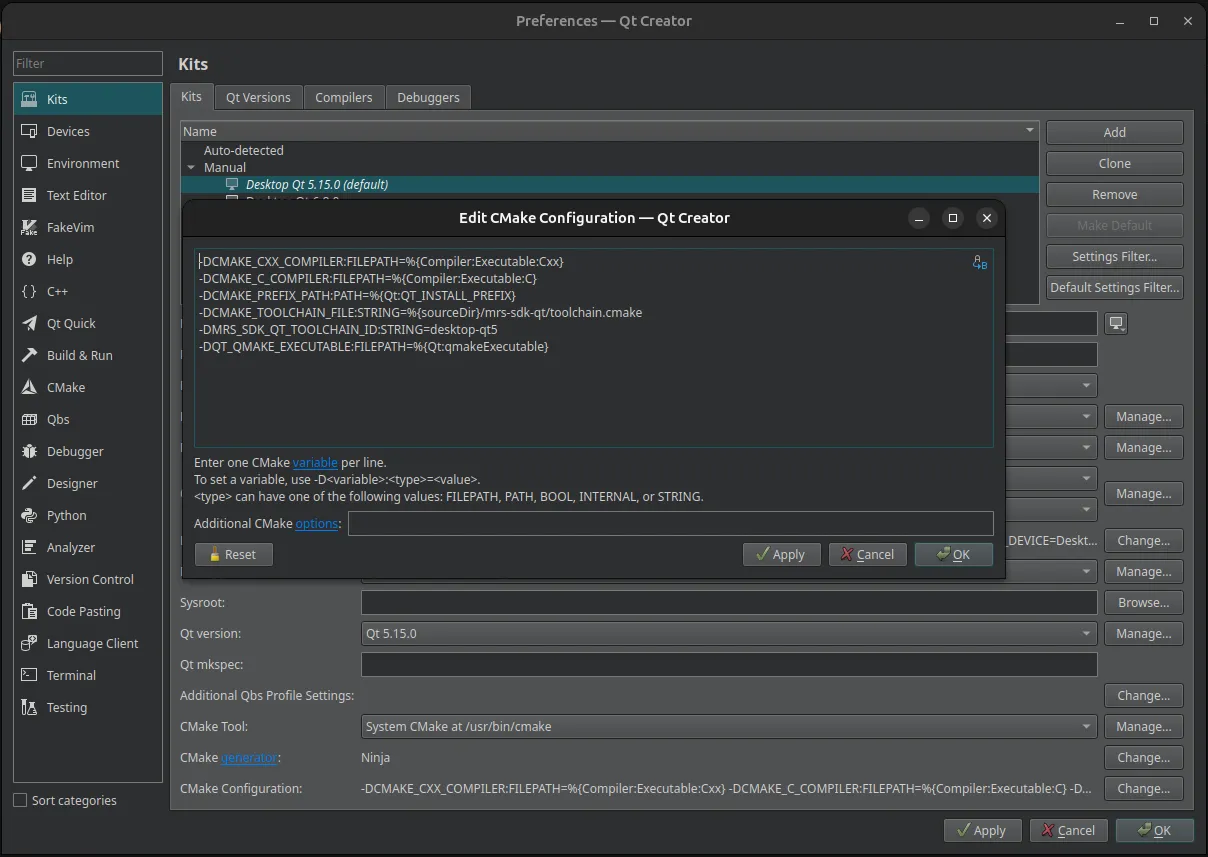
-
Your Desktop Qt5 kit is now complete and ready to use with the MRX SDK! To make sure everything is working properly, verify your kit setup.
Verify Kits
Section titled “Verify Kits”NOTE: these steps are based on version 13.0.0 of Qt Creator, which is the version installed by default in the MRX SDK VM.
You can use the demo applications included in the SDK to test out your kit configurations.
-
Install the
target-supportarchive and the module archives you need into one SDK prefix. -
Configure the local product SDK or host Qt root for that target.
Terminal window /opt/mrxqt-sdk/0.1.0/mconn-buildroot-qt5.9/bin/mrxqt-setup config set \--target mconn-buildroot-qt5.9 \--product-sdk-root /opt/product-sdks/mconn-buildroot/opt/mrxqt-sdk/0.1.0/mconn-buildroot-qt5.9/bin/mrxqt-setup init-project \--project /path/to/demo \--target mconn-buildroot-qt5.9 \--sdk-prefix /opt/mrxqt-sdk/0.1.0/mconn-buildroot-qt5.9 \--toolchain share/mrxqt/toolchains/buildroot-qt5.9.cmake -
Open the demo project in Qt Creator (docs here). Qt Creator will pick up the generated
CMakeUserPresets.jsonand configure the project with the generated preset.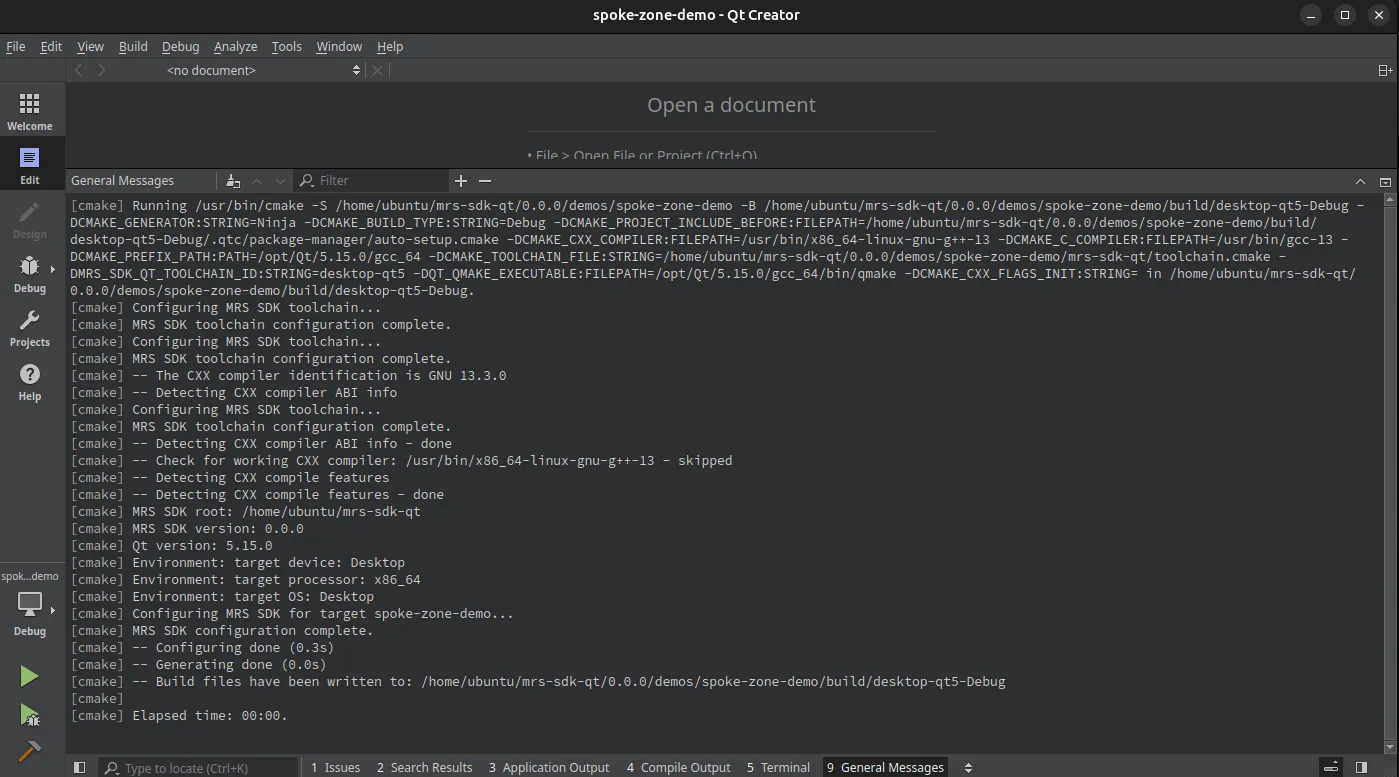
-
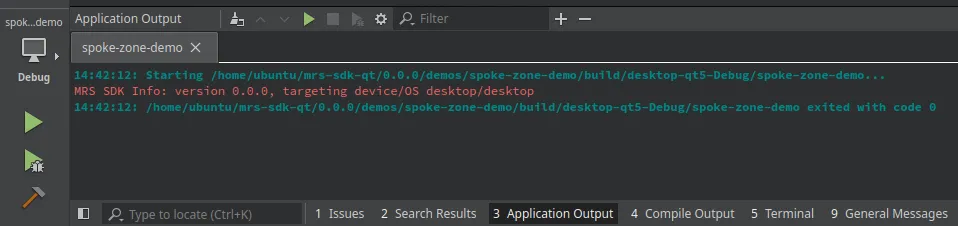
Click the Run button in the lower left-hand corner (or press Ctrl + R) to build and run the project. You should see successful compilation followed by a successful run of the demo app.
-
Your kit is ready to go!